


Tech
Page
Aces High handles VR really well. I don't have a lot of info on it as most of the good information is on the Aces High BBS. There are many post about the different headsets and how to set them up. Also many "tricks" are revealed as players use the "head position" setting and hat switches to really maximize your views with out twisting your neck off. Check out "Everything VR" on the Aces High message boards.
For those of you that wear glasses, Fitting them inside your headsets is tough and can cause scratches to the lens both on your glasses as well as in the headset. A company "WidmoVR" makes prescription lens for many of the headsets available.
Track IR
Aces High also does Track IR very well. It to works WITH the head positioning of the game. Below is and old "setup" document that while uses an older version, still covers the setup procedure very well. It was written by "Mace". Track IR uses "profiles" so that you can have different setups for different games. Below is a zip file containing about a dozen different setup from different players.
Maces Track IR setup
Track IR Profiles
Key and DOT Commands
In the game there is a default setup of key commands. All of these can be easily changed but the default list is below. Dot commands are commands you can use in the game to perform a number of functions such as ".s Fugitive" would send a <Salute> Fugitive message across the text radio chatter. Below is a list of those commands.
Key Commands Default list
Dot commands
Joystick Controller Setups
Aces High will take pretty much ANY joystick. If windows can see it, it will work. The configurations are endless in both button assignment and scaling. The in game programming is easy to use and change on the fly. Below are drawings of a few different sticks and throttles that can be printed out and you can write in what each button on your stick is set to. It makes for a great "quick access" view to keep on hand until you settle in on your configuration and start remembering it. Click on the picture of your stick to get a larger version to print.
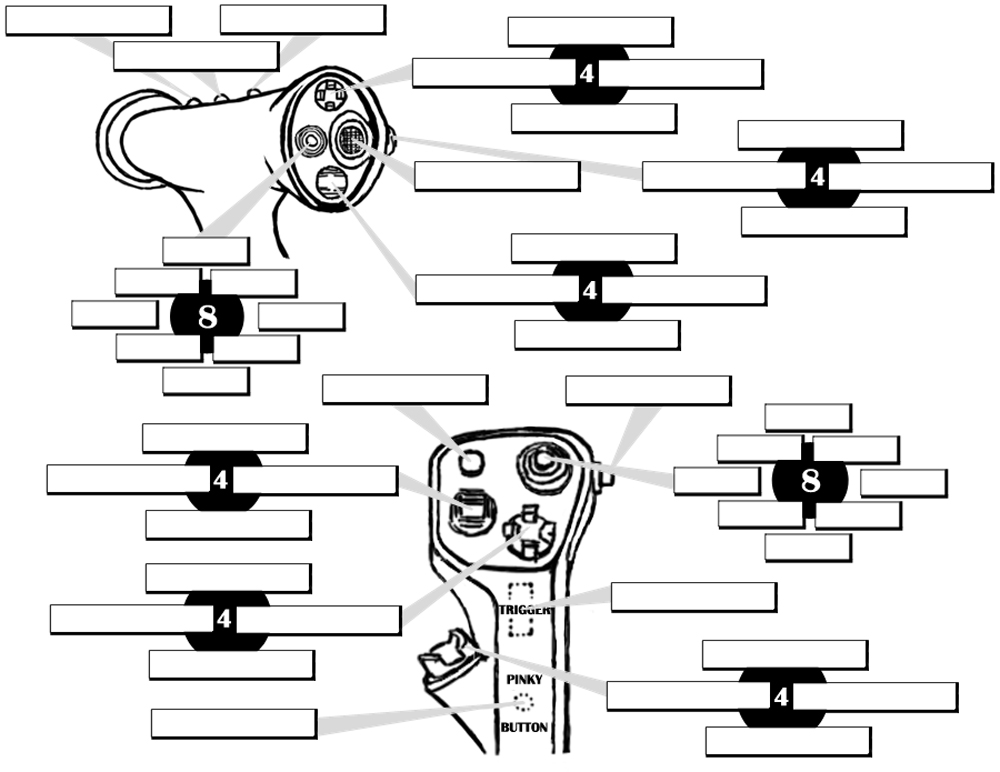
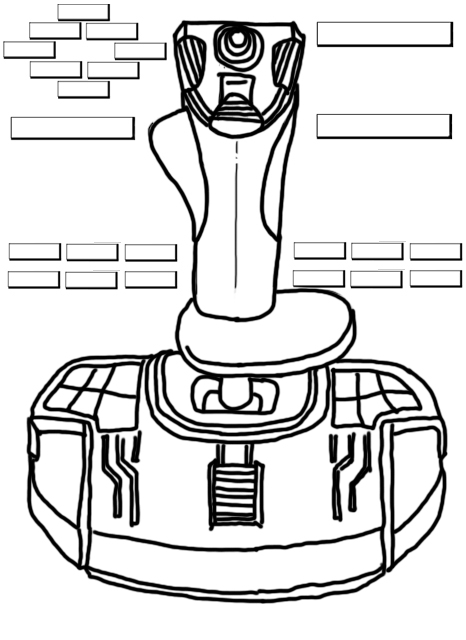
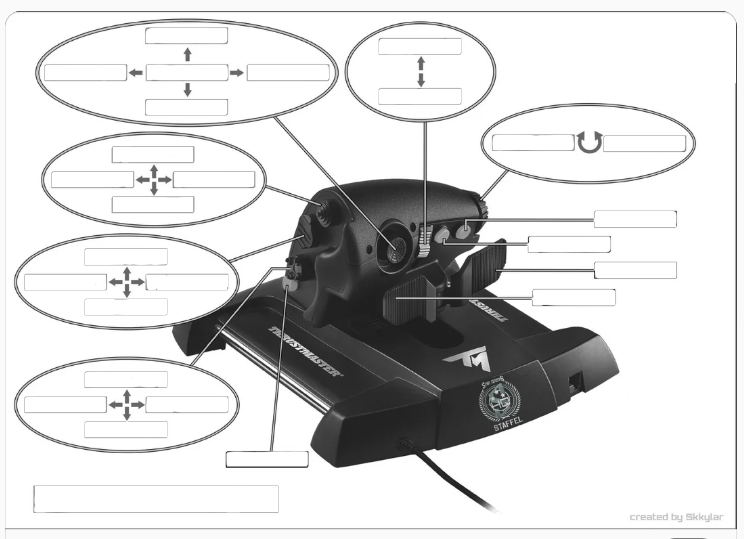
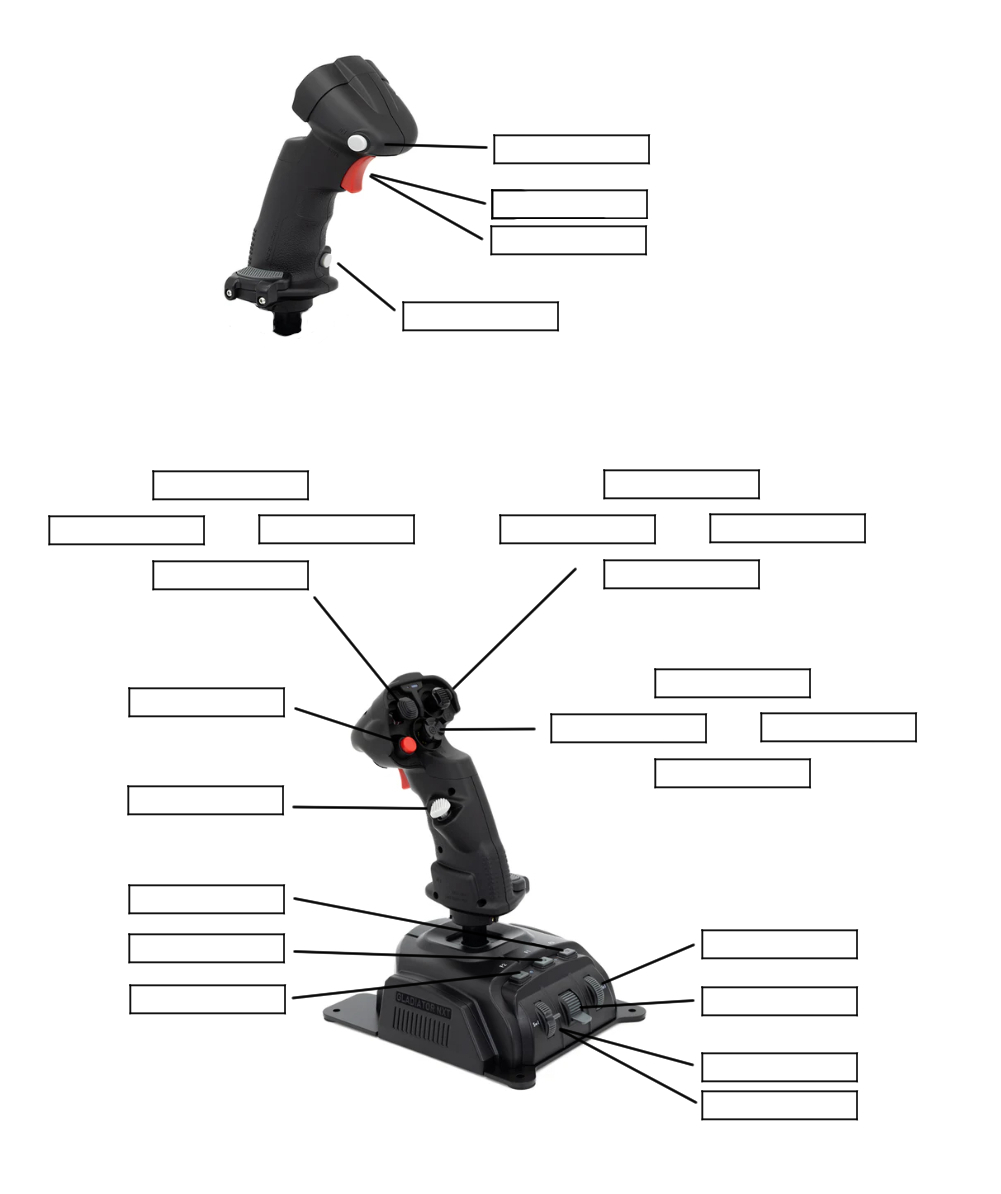
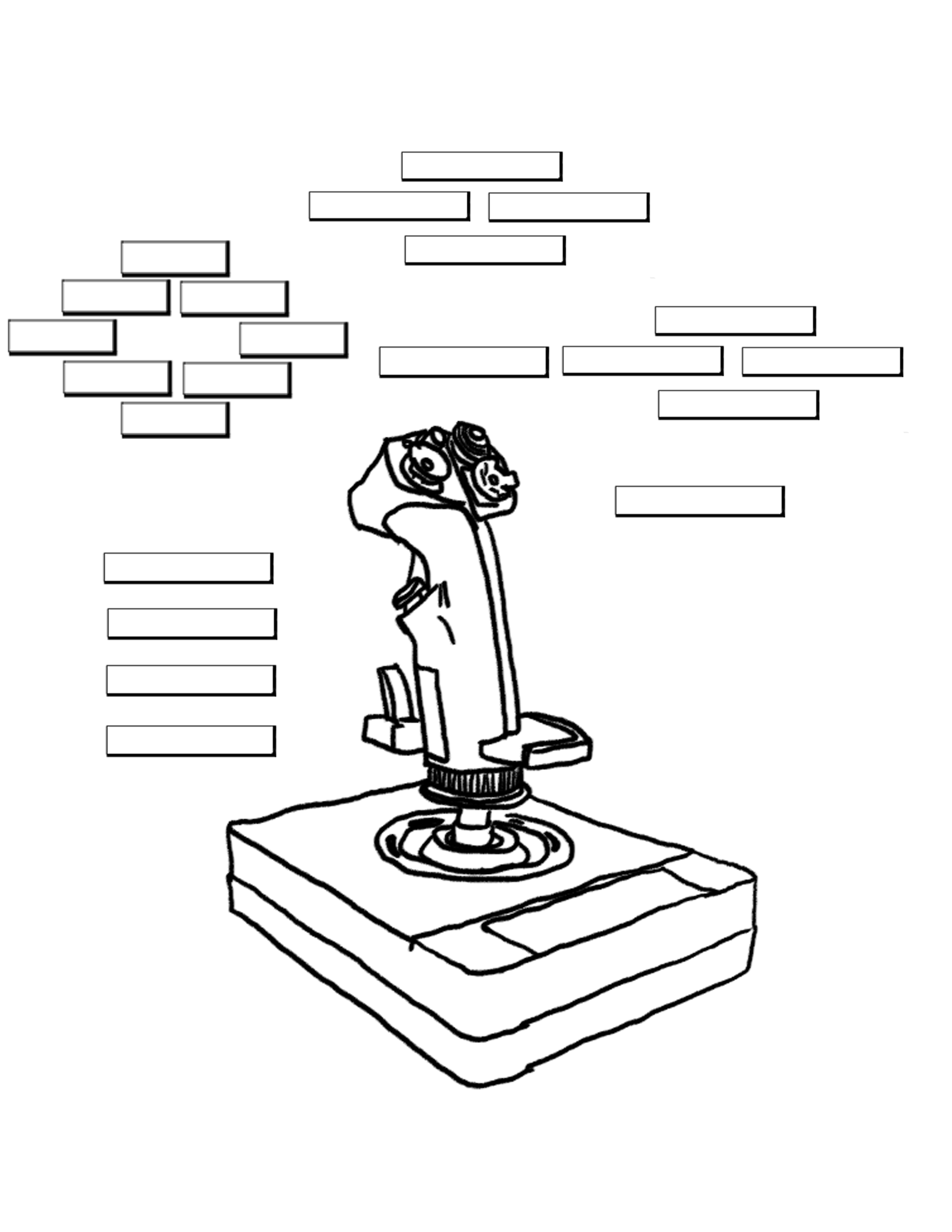
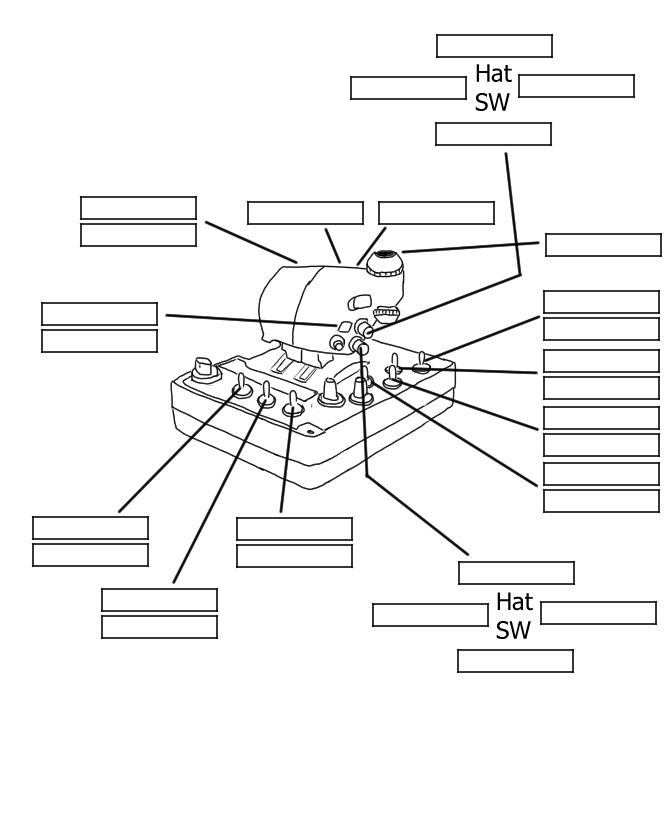
If your controller isn't here, sometimes you can find a page made up from so other place. GOOGLE is your friend :)
Voice Attack
The one thing I can add here is "Voice Attack". VA is a program you can use the assign tasks to a voice command. When wearing a VR headset you can have a hard time using a mouse or finding keys on the keyboard. VA allows you to have up to 10 commands in the free version an unlimited in the paid version ($10). Voice Attack also works great for those that one dont have a million buttons on controllers, or two have trouble using a million buttons.
I have added a help page for setting up Voice Attack. You can check it out HERE
Voice Attack ver 2.2.0.0
FIELD OF VIEW GUIDE!
**Please remember FOV (Field Of View) is largely personal preference! This setting just finds your "natural" fov, below of which you might start to feel motion sick**
1. You need 3 measurements in the same unit of measurement: (A) Top of monitor to eye when sat normally (34 inches for me) (B) Bottom of monitor to eye when sat normally (37 inches for me) (B) Height of monitor vertically (13 inches for me).
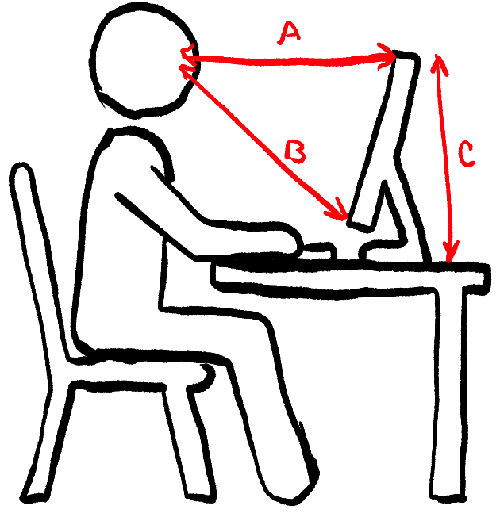
2. Put these numbers into this calculator: http://ostermiller.org/calc/triangle.html with the top measurement on the left "side" box, the bottom measurement in the right "side" box and the monitor height in the bottom "side" box.
3. Make a note of the top "angle" number i.e. the one nearest to where it says "angle units" (if you put in my numbers you will see it says 21 degrees in the top "angle" box)
4. Nearly there. Now you just need to convert the VERTICAL FOV to HORIZONTAL FOV by finding you monitor aspect ratio and dividing appropriately. i.e. 1920x1080 24 inch monitor which is a 16:9 ratio monitor (all 1920x1080 square pixel monitors are). An ultra wide with 3440x1440 34 inch monitor has a 21:9 ratio.
This means I divide the 21 degree Vertical FOV by 9 then multiply by 16 = 37.3 degrees
5. Now you just need to convert this number to radians, which is what games use i.e. I googled "37.3 degrees in radians" and got 0.65 = 65 degree FOV in games. Anything less than that is likely to make me feel motion sick. I currently have my FOV set to 80 degrees at is seems the best balance between visibility at distance and good awareness. On the ultra wide screen it comes out to 95.6 degree FOV.
This will get you in the ball park of where you might like your FOV. Starting from here you can make adjustments to see more of the gauges, or feel you like the seating position and add a "look down forward" button to see the gauges.
Sweet FX now called Reshade
Reshade is an add on program to enhance your graphics in the game, or any game for that matter. It can make the views brighter, and sharper.
Home